
In general, you should not (and should not need to) do this for WordPress x Lightspeed sites as those have built-in HTTP uploads for both plugins and themes.
SFTP (SSH File Transfer Protocol) is a secure file protocol that is used to access, manage, and transfer files over an encrypted SSH transport.
When compared with the traditional FTP protocol, SFTP offers all the functionality of FTP, but it is more secure and easier to configure.
Unlike SCP , which supports only file transfers, the SFTP allows you to perform a range of operations on remote files and resume file transfers.
In this tutorial, we will show you how to use the Windows WinSCP utility. On Linux/Mac there is also the sftp command, but those are beyond the scope of this article.
Passwords vs Keys
First up, you’ll need to have a ssh key pair. This is because all secure systems have abandoned the use of passwords (even though the S in SFTP prevents eavesdropping unlike regular FTP).
No matter how strong the password is, it is still vulnerable to password guessing by bots. Also, people tend to choose weak passwords or reuse their passwords to make them easier to remember. While password guessing can be mitigated by choosing strong passwords (harder than it looks) or limiting failed login attempts, it is best to get rid of passwords completely.
Note: Command line access to Network Folders is not permitted for terminal or SSH connections.
How to install Cyberduck
Lightspeed recommends the use of the Cyberduck SFTP application for OS X secure file transfers as it is Free (when not downloaded from the Mac Store) and OpenSource. Please download and install Cyberduck before following the instructions below to upload a file to your Network Folder.
- Download a dmg file from a distribution source.
URLhttp://cyberduck.ch/ - Double-click the downloaded dmg file and mount it
- Drag the Cyberduck icon into the application folder to make a copy.
Configure Public Key Authentication
- Run the command
ssh-keygenfrom the Terminal.app (macOS) to generate a public/private pair of keys. They will be put in your directory~/.ssh, though you will probably be asked to approve or change this location. When you generate the keys you will be asked for a ‘passphrase’. If you use a passphrase then you will have to enter it each time you use the keys for authentication. That is, you will have to type in the passphrase every time you log in, just as you would with a password. If you don’t enter a passphrase (just press the return key) then you will be allowed to log in without having to enter a passphrase. This can be more convenient, but it is less secure.
ssh-keygen -m PEM -t ed25519
Except for very old Macs, you should always use ed25519 as the key type. If you need an older key type, please contact us.
- Send an email to helpdesk@lightspeed.com.sg with the public key, and we’ll add it to your WordPress x Lightspeed instance (specfically, it will be added to the file
authorized_keysin your~/.sshdirectory. Anybody listed in the authorized_keys file (via their public key) is allowed to log-in, provided that they can prove that they possess the corresponding private key. Thus, if you have the private key in your .ssh directory on your home machine you’ll be allowed in.
Uploading files using Cyberduck
The instructions below are based on Cyberduck v2.8. Advanced users may use the command line to connect to the server if they wish.
To use Cyberduck to set up an SFTP connection to your WordPress × Lightspeed host, follow these steps
- Open Cyberduck
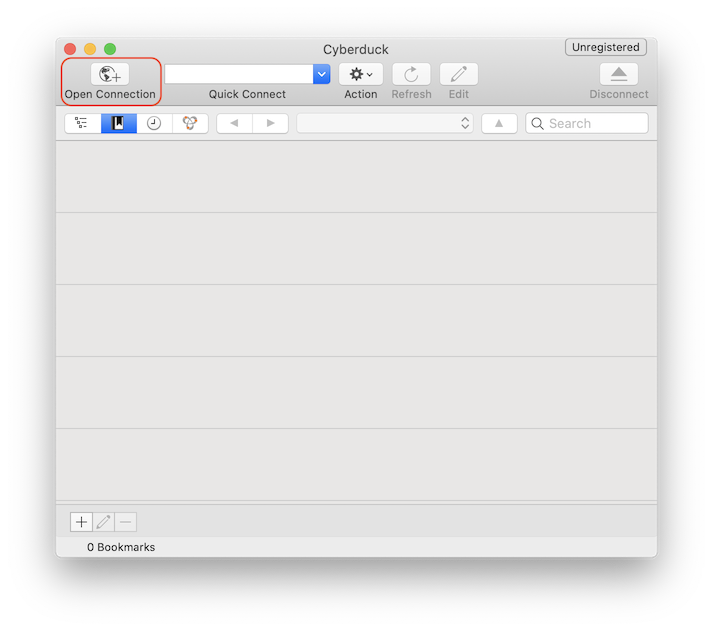
- Click “Open Connection” button in the Upper left to set up a connection.
- Input the following information.
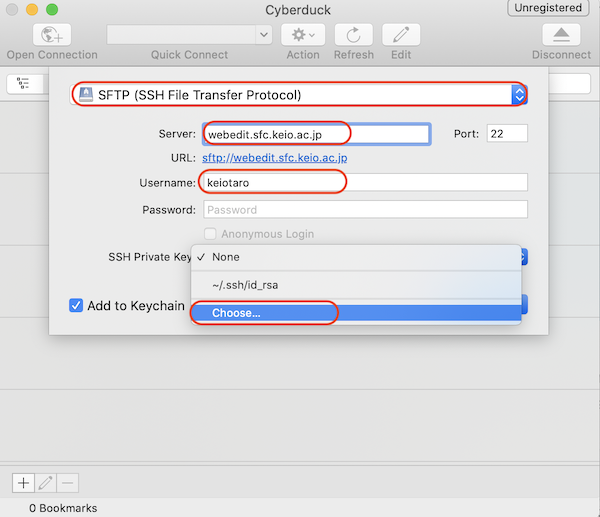

- Select the saved private key (usually ~/.ssh/id_ed25519)
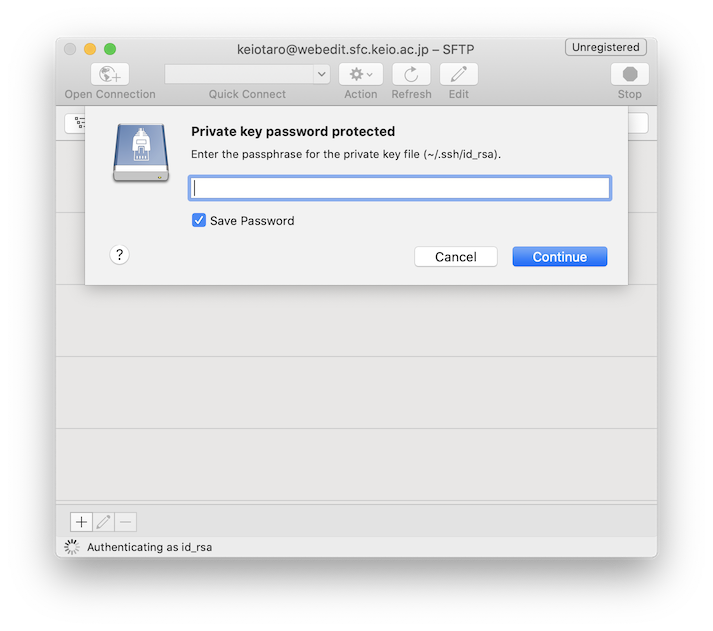
- Enter the private key passphrase (if you have one), and then click login.

Command Line Access
To set up an SFTP connection to your Humboldt Network Folder from the command line, follow these steps:
- Open Terminal by selecting Go > Utilities > Terminal
- Type: sftp <WordPress × Lightspeed UserName>@<WordPress × Lightspeed domain> and hit Enter
- Enter the passphrase associated with your account (e.g. /Users/my-user-name/.ssh/id_ed25519