
Follow these steps to configure WPA2 Enterprise authentication for Meraki or Unifi Wi-Fi Access Points or Ethernet Switches:
Android
- Open your Wi-Fi settings and click on the SSID you want to connect to. If it’s not visible, choose the option to Add network and enter your network SSID name and set the Security type to “802.1x EAP”.
- Set the following options:
| Field | Value |
|---|---|
| EAP Methods | TTLS |
| CA certification | Use system certificates, domain = picomail.net |
| Identity | Your Lightspeed provided username |
| Password | Your Lightspeed provided password/MFA |
| Advanced | Under advanced (for older Android) set the following: – Phase 2 authentication : PAP – Anonymous identity: This value is the user’s unencrypted identity outside the TLS tunnel. Since the RADIUS agent does not use this currently, you can enter any random value. |
Screen should look like this: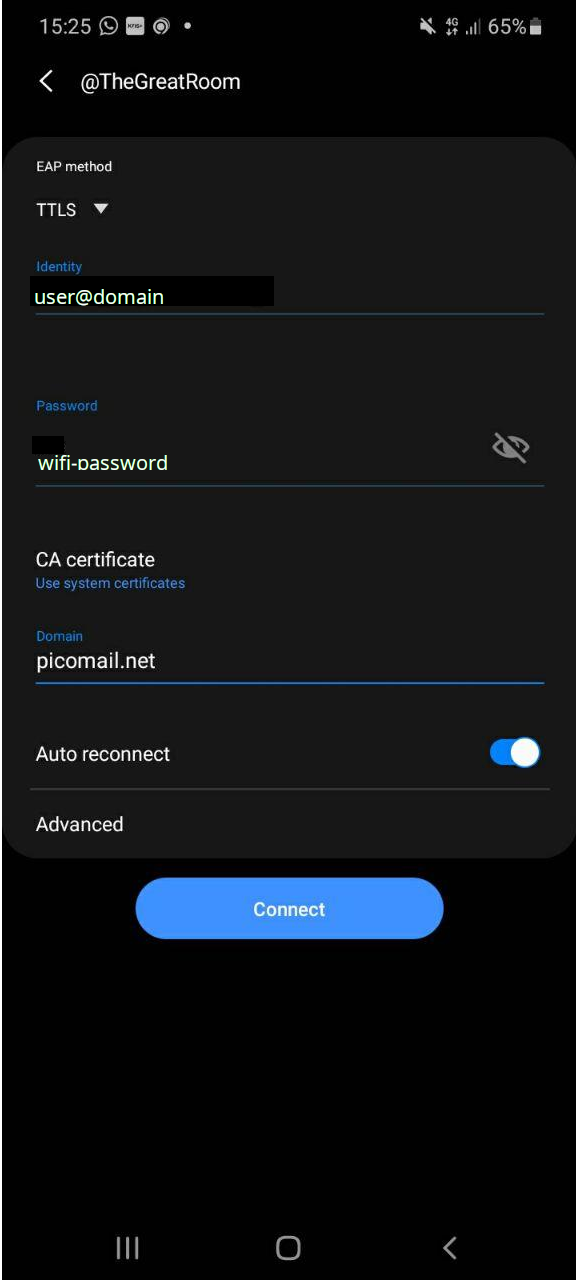
The device should now be able to connect to the Wi-Fi network.
iOS
Windows 10
- Navigate to the Network and Sharing Center and choose to Set up a new connection or network and then click Next.
- Choose Manually connect to a wireless network, then click Next.
- Select the Security tab and change the network authentication method to Microsoft: EAP-TTLS and then click on Settings.
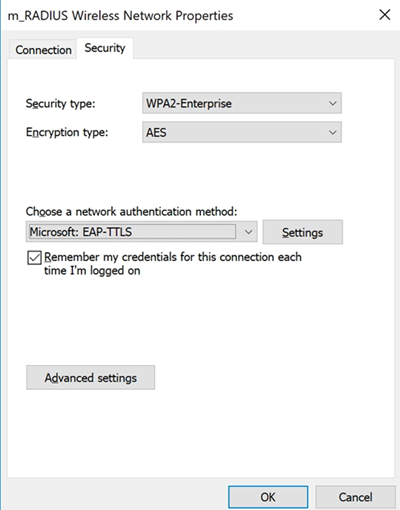

- In Advanced settings, check Specify authentication mode with valueUser authentication Then click Save credentials.
- Connect to your RADIUS enabled SSID.
MacOS
(Macbook/Macbook Air/Macbook Pro)
- Open Network Preferences
- Select AirPort in left menu and click the Advanced… button
- Select 802.1X configuration tab in top menu
- In left bottom corner click + button and Add User Profile
- Set profile name, your user name and password . Select TTLS in the Authentication protocols list. Click on TTLS protocol and then click Configure….
- Select PAP as the TTLS inner authentication protocol. Leave the optional Outer Identity field blank. After that click OK.
- With IronWifi you do not need to configure Trust so you can skip it. In Wireless Network combo box select wireless network you want to connect. In Security Type field set WPA2 Enterprise value. Configuration is finished. Click OK.
- Now you can see created profile in profiles list. Click Connect button.